
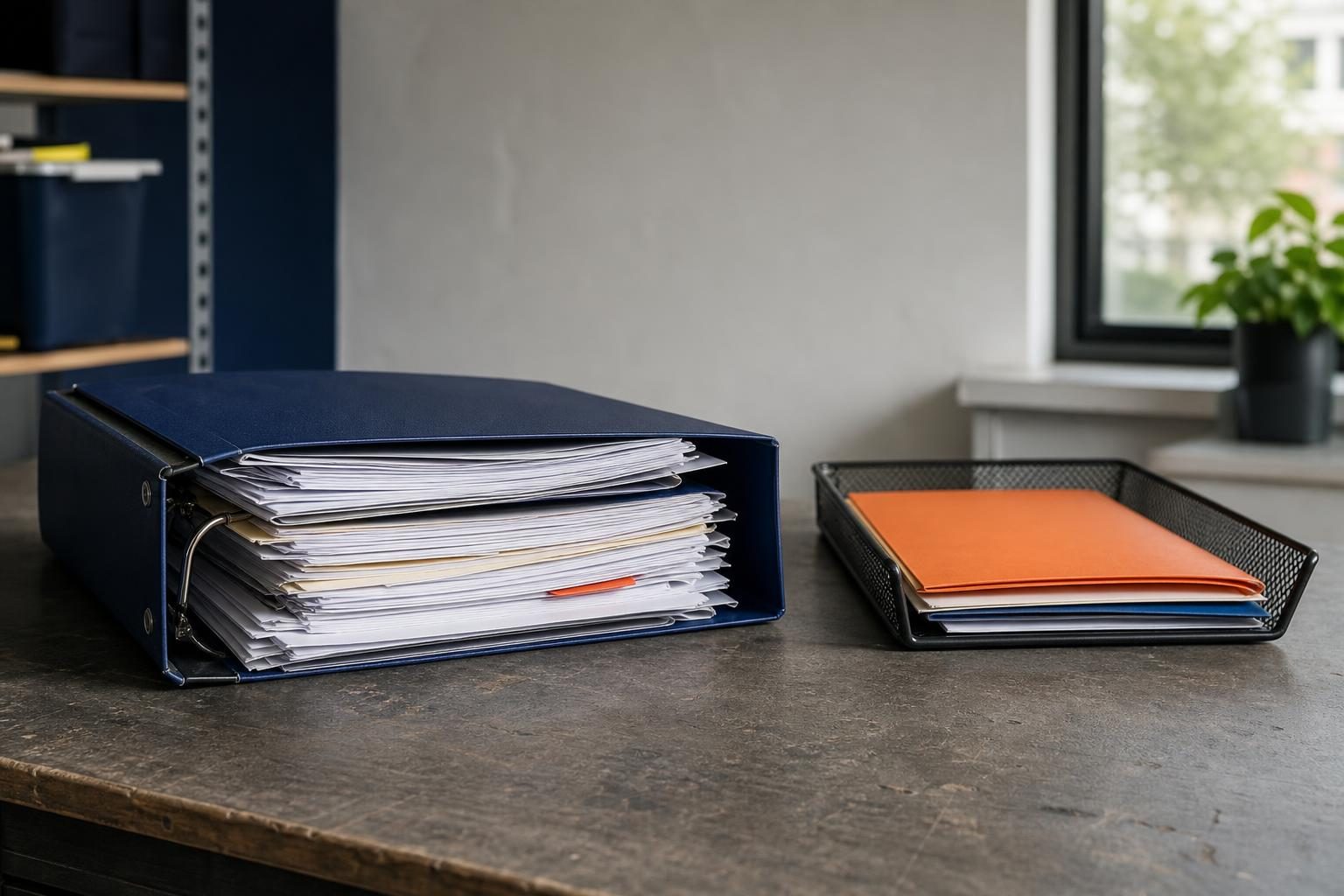
A 14-person property management company tracks maintenance requests, vendor assignments and job status in one Google Sheet. The sheet has become the operating system for the business, but coordinators keep editing the wrong rows, vendors are missed and managers cannot quickly see which jobs need attention. The problem is not a lack of data. It is that everyone must work like a spreadsheet expert to make a routine update. Google Sheets canvas offers a different possibility: a purpose-built view that lets each person update the same underlying data without treating the full worksheet as their workspace.
- Treat Sheets canvas as an operational front end
- Start with one repeated update workflow
- Know when to use charts and when to use canvas
- Design the sheet before the interface
- Make availability a rollout checkpoint
- Frequently asked questions
- Conclusion
Treat Sheets canvas as an operational front end
Most small firms make the same mistake with spreadsheet data: they try to make it more visible before making it easier to use. A new chart may help a manager spot a backlog, yet it does little for the coordinator who needs to assign a vendor, record a customer update or change a job from waiting to complete.
Google’s launch materials describe Sheets canvas as a Gemini-powered, dynamic layer on spreadsheet data that can produce custom interactive read-write applications from natural-language prompts, with layouts designed for team collaboration. Google also says Workspace smart features must be enabled, and Scheduled Release visibility began gradually on August 31, 2026, with a window of up to 15 days.
That read-write quality is the point. A canvas should not become another executive dashboard that people admire and ignore. Its better role is a lightweight operational front end: a constrained workspace that shows one employee the records they need, the fields they can change and the exceptions that demand action.
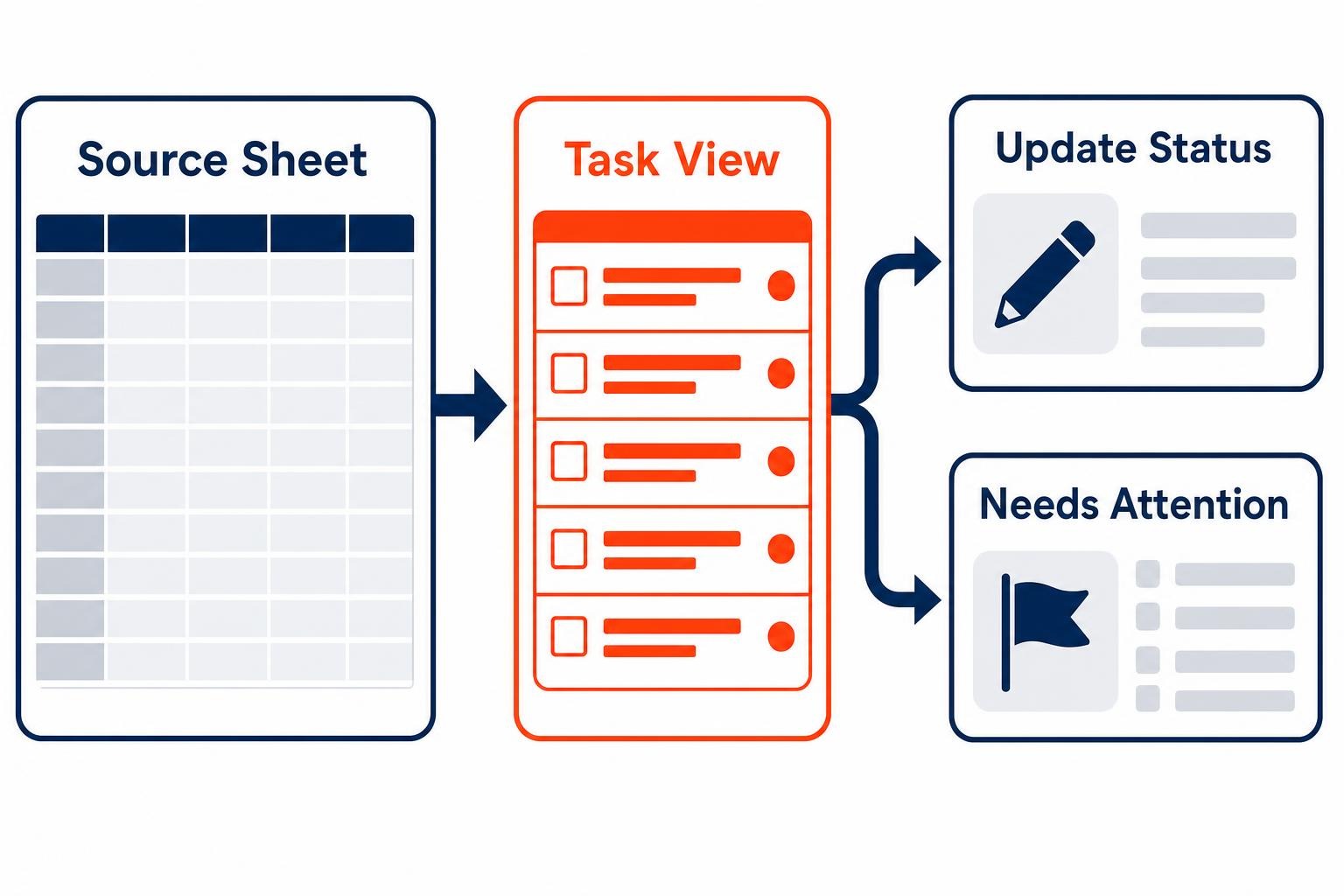
For the property management company, the first canvas could present a coordinator with open maintenance requests assigned to their area, then ask for only the next required action: vendor, appointment date, status and owner update. A manager’s view could instead surface overdue work and unassigned requests. Both views write back to the same operational record. The spreadsheet remains the source, while the work becomes far less dependent on row numbers and filter skills.
This is a useful distinction for owners who are considering AI tools. As Your First AI Agent Should Have One Small Job argues, a narrow responsibility is often the wiser starting point. Apply the same discipline here. Ask a canvas to make one recurring decision or update easier, rather than asking it to redesign the business in a single prompt.
Start with one repeated update workflow
The best first use case is frequent, bounded and mildly frustrating. It has a predictable starting point, a few fields that must be completed and a person who can be held accountable for the next move. Maintenance coordination, lead qualification, client intake, stock exceptions and project handoffs fit this pattern. Annual planning does not.
Begin by writing the job in a sentence: “A coordinator assigns each new maintenance request and records the promised visit date before the end of the day.” That sentence tells you what the interface needs to display and what it must collect. It also exposes what does not belong in the first version, such as every financial field, every historic note or a manager-only report.
A worked example: professional-services intake
Consider a hypothetical seven-person architecture practice that tracks prospective projects in a sheet. Partners add leads inconsistently, the office manager chases missing information and nobody knows which inquiry has received a response. Instead of starting with a sales dashboard, the firm creates a narrow intake view for the office manager. It presents new inquiries, captures contact details, project type, next-contact date and assigned partner.
What changes is the work sequence. The office manager no longer scans a wide sheet to infer what is missing. Partners see assigned opportunities rather than every inquiry ever received. The sheet can still support reporting later, but the immediate gain is clearer ownership of the next action. Google says users can refine a generated canvas by entering another prompt after it is created, which makes iteration part of the design process rather than a reason to wait for a perfect specification.
Keep the first prompt operational. Describe the user, the records they need, the fields they should update and the conditions that deserve attention. Avoid vague requests such as “make an executive dashboard.” They encourage decoration when the team needs a working queue.
Know when to use charts and when to use canvas
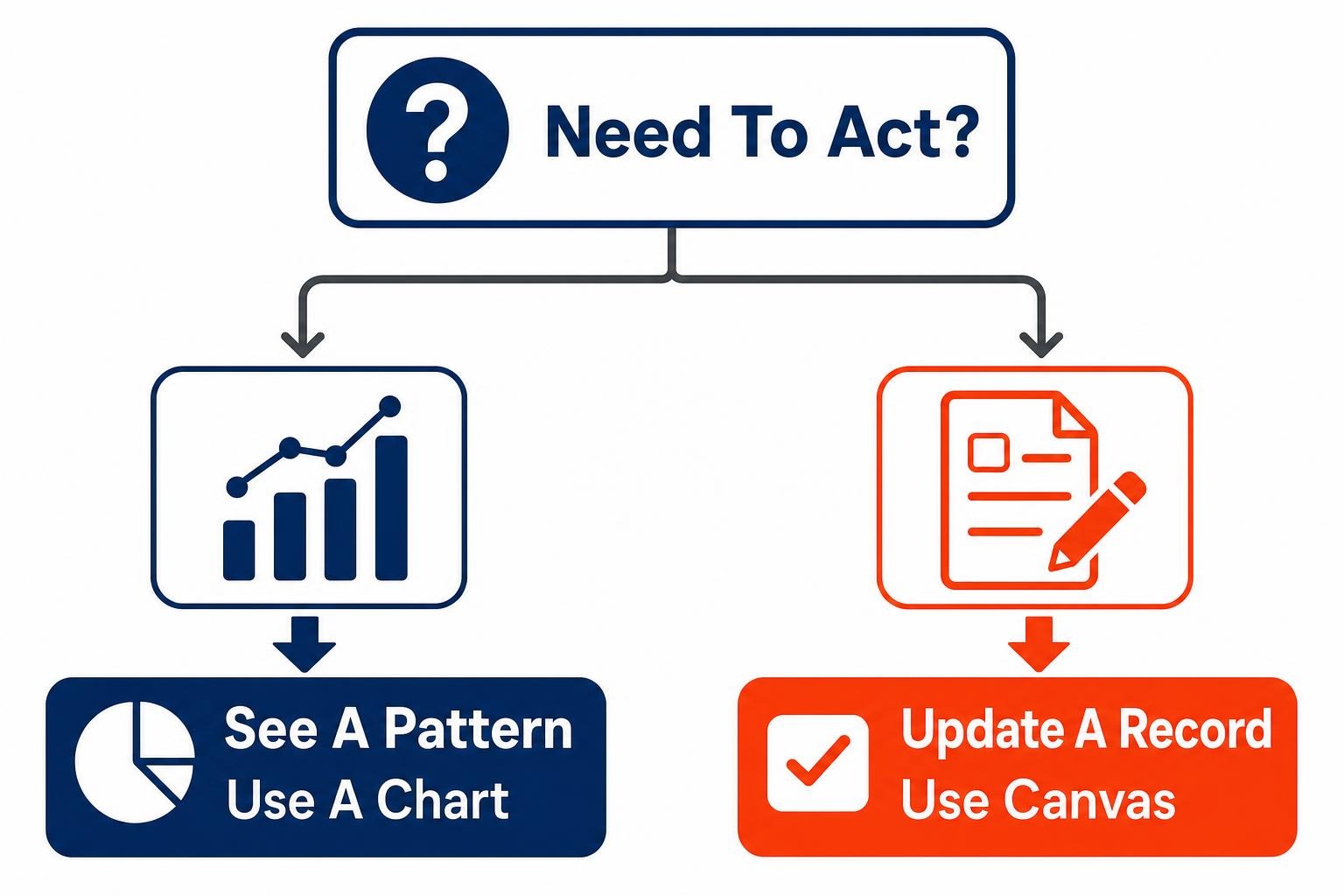
Sheets canvas does not replace ordinary charts. A chart is still the right choice when the user needs to see a pattern, compare periods or ask a question of completed data. Google Sheets supports chart types including line, combo, scatter, histogram and candlestick charts, and a chart can be built from selected cells through the standard Insert > Chart workflow.
Canvas earns its place when seeing the answer should lead directly to an update. If a manager sees five overdue jobs and must assign owners, that is an operational interface problem. If the manager wants to understand whether overdue jobs rose over the last quarter, that is a chart problem.
There is room for both. Google’s Sheets API documentation describes charts as spreadsheet objects with their own specifications, and Google Charts documentation notes that spreadsheets can serve directly as a data source for charts. That mature charting foundation is worth preserving. Do not rebuild visual analysis inside a task interface merely because a new feature is available.
A worked example: inventory exceptions
Take a hypothetical 10-person specialty distributor. Its operations manager uses a simple chart to review products that repeatedly fall below the preferred stock level. That chart identifies the pattern. A separate canvas view then lists only current exceptions and asks the purchasing coordinator to select a supplier, enter an order reference and set a follow-up date.
The chart answers, “Where is the recurring issue?” The canvas answers, “Who will act on today’s exception?” Combining them this way prevents a common failure: turning an action queue into a colorful report that nobody owns.
Design the sheet before the interface
A polished canvas cannot rescue an incoherent sheet. Because the interface sits over existing spreadsheet data, unclear columns and loose status values will reappear in a prettier form. Before generating anything, clean up the operational model underneath.
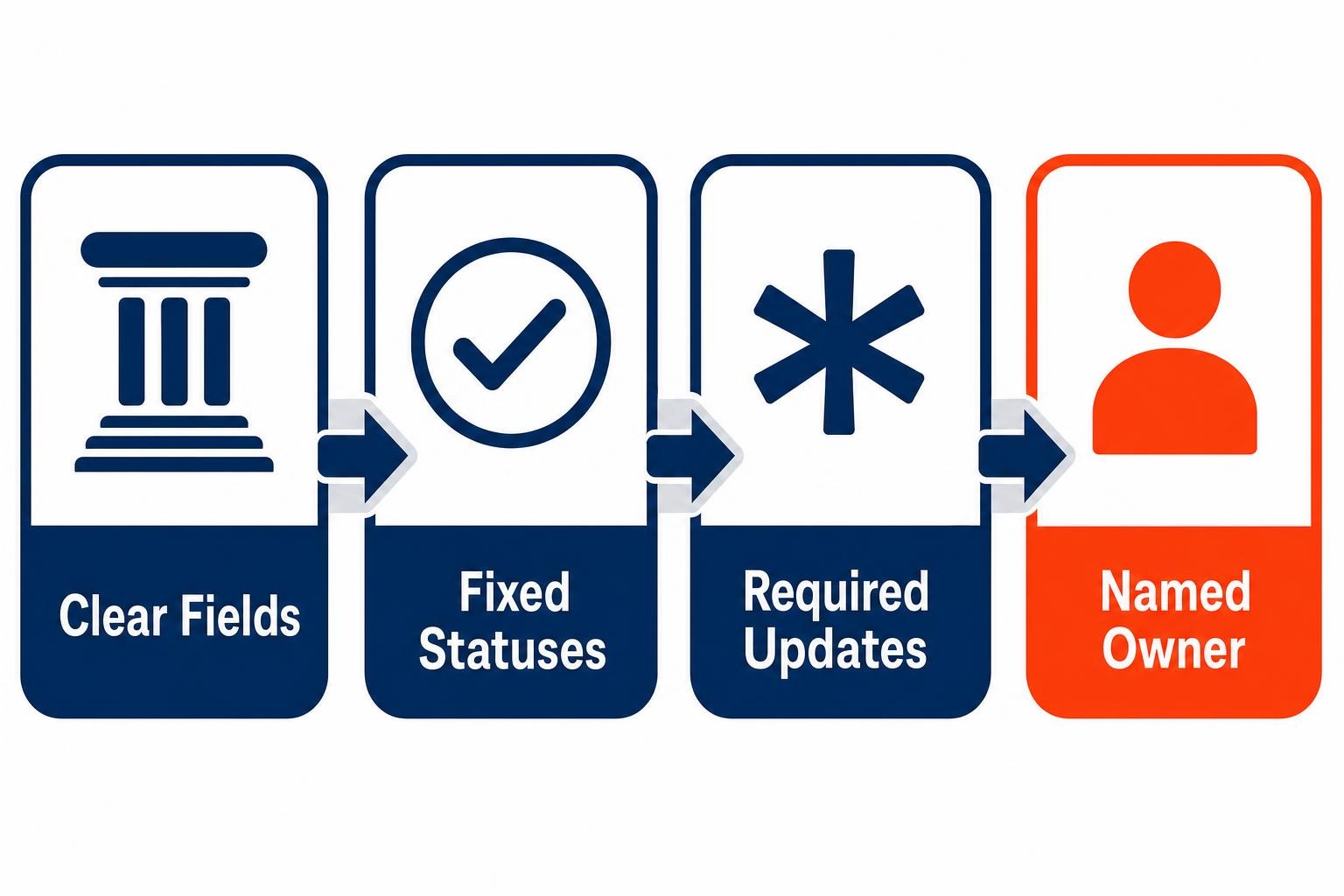
Four decisions to settle first
- Clear fields: Give each column one purpose. “Notes” may be useful, but it should not quietly substitute for a missing status, owner or due date.
- Fixed statuses: Decide the approved words for the work state. “Open,” “waiting,” “assigned” and “complete” mean more when people cannot improvise near-duplicates.
- Required updates: Identify the minimum information needed before work can move forward. A vendor assignment without a date may not be an assignment at all.
- Named ownership: Every active record needs a person or role responsible for the next action, even if several people contribute.
Google’s help documentation says a Sheets canvas can be created from the side panel, menu bar or bottom bar, and that it can build custom interfaces for managing and updating information from spreadsheet data. That convenience should make firms more demanding about process design, not less demanding. A fast prototype is useful only when the team agrees on what a correct record looks like.
This is where the automation and Microsoft 365 perspective matters. Gemini can speed up a prototype, but it cannot decide which status means “ready for billing,” who may close a request or where sensitive client information should live. For a Microsoft 365-centered firm, decide whether the operational source of truth belongs in Google Sheets or in the existing Excel, Teams and Power Automate workflow before creating a second layer of activity. An automation platform can pass a defined event between systems. It cannot resolve two competing versions of the same work.
Keep human judgment where exceptions, approvals and client commitments are involved. Use automation for predictable handoffs, reminders and record creation after the fields and ownership rules are stable. For a broader process perspective, see 7 Benefits of Process Automation for Small Business Owners.
Make availability a rollout checkpoint
Do not redesign a workflow around a feature your team cannot yet access. Google Workspace lists Sheets canvas as a release dated August 10, 2026. Treat that date as a prompt to verify your environment, not as a deadline to migrate a working process.
Ask an administrator to confirm smart-feature settings, then have one operational owner check the available Sheets entry points. If the capability is visible, run a small pilot with a copy of a well-understood process. If it is not, use the time to normalize the sheet, define statuses and document ownership. That preparation will still pay off whether the team later uses canvas, a standard chart or another workflow tool.
Set a modest review point after real use. Look for wrong updates, fields people avoid, requests that require a comment rather than a status and steps that still happen in email or chat. The purpose is not to prove that AI generated a clever interface. It is to reduce the effort required to keep the operating record accurate.
Frequently asked questions
What is Google Sheets canvas used for?
Google Sheets canvas is suited to task-focused views that sit over spreadsheet data and let people manage or update records through a custom interface. For a small business, a strong use case is a repeated workflow such as assigning service requests, qualifying leads or recording project handoffs.
Should I use Google Sheets canvas instead of charts?
Use charts when your main need is analysis, such as spotting a trend, comparing categories or reviewing completed work. Use Sheets canvas when the viewer must take action on a record. Many teams should use both: a chart for management review and a canvas for daily updates.
Can Sheets canvas fix poor spreadsheet data?
No. A canvas can make a workflow easier to use, but it depends on the data model below it. Define clear columns, approved status values, required fields and accountable owners before generating an interface. Otherwise the new view will reproduce the same ambiguity in a different format.
What should a small business build first in Sheets canvas?
Start with one narrow, high-frequency workflow where staff repeatedly open a sheet to update the same few fields. Choose a process with an obvious owner and clear next action. Avoid trying to combine sales, operations, finance and executive reporting in the first canvas.
Build a better place to do the work
For the 14-person property management company, success would not be a prettier maintenance dashboard. It would be a coordinator who can confidently assign a vendor, a manager who can see stalled jobs and a shared record that stays current without risky row editing. That is the practical promise of Google Sheets canvas. Start with one repeated update, settle the data and ownership rules behind it, then test whether a simpler interface changes behavior. Small firms do not need another place to look at work. They need a better place to do it.
Ready to explore how you can streamline your processes? Reach out to Automated Intelligent Solutions today for expert guidance and tailored strategies.